Articles by "How To Tutorials"

Showing posts with label How To Tutorials. Show all posts

Trick To Schedule WhatsApp Messages For A Particular Time


After posting many of useful tricks AliveTricks giving a new trick, you can easily schedule a message for a particular time. Just Because there are lots of peoples using WhatsApp and every day thousands of people joins WhatsApp, That's why it becomes a vast field of tricks and tips for trick lovers.
schedule whatsapp messages for a specific time

Sometimes we forget some special occasions in our life-like the birthday of friends, anniversaries, or any other special occasions, To schedule best wishes for your friends and family members. Here we are giving a trick send messages for a particular time.
Just because WhatsApp never gives any option to schedule messages but sometimes it get possible with some exclusive third-party apps.
 
Schedule WhatsApp Messages in Android and iPhone.
 
Follow this Steps to Schedule WhatsApp messages
Step 1. WhatsApp First of all install WhatsApp scheduling app from play store or iTunes.
If you are android user then click here to install app from play store
And if you are iPhone user then click here to download an app from iTunes. If you face any problem with this apps, then you can download other apps listed here.
Step 2. Open the downloaded application and allow it to access WhatsApp.
schedule whatsapp messages for a specific time


Step 3. Choose to whom you want to send message.
Schedule a WhatsApp message

Step 4. Pick time and date for the message.
Schedule a WhatsApp message

Step 5. Type your message
Schedule a WhatsApp message

Step 6. Your message will be sent to the receiver at the time you set before.

How To Increase Data Transfer Speed of Pendrive


Pen drive is now become one of the most usable things for every technology user to transfer data between two different devices. 
But sometimes it gets tough due to some pen drive have their compatibility issue, and then they lost their data transfer speed. Pen drives data transfer speed lies between 1.2MB to 30MB per second, depends on pen drive quality.
Trick to increase data transfer speed of pendrive


Why Pen drives get slow in data transfer-

  • Due to Pen drive compatibility
  • Pen drive type and its structure 
  • Due to OS and hardware problems
How we Increase data transfer speed 
Various factors are there due to pen drive gives a slow performance, so we will use some simple steps to increase Pen drive data transfer rate.
  • By changing pen drives file system
  • By changing Device Policy
  • Checking performance of PC 
Steps to Follow

Step 1. At first Connect your pen drives to your computer.


Step 2. Right click on Pen drives and click on format option to format the data of your Pendrive(You can take the backup of your data).
Trick to increase data transfer speed of pendrive
Step 3. Now go to file system set it to NTFS and uncheck quick format after that click on start and start the formatting process.
Step 4. After formatting pen drive. Right click on the pen drive and go to Properties option. On properties, option navigates to Hardware tab. And select your pen drive then click on properties.
Trick to increase data transfer speed of pendrive

Must follow this rules
After changing device policy and Better performance always eject pen drive by clicking on Safely remove you USB. 
Now your Pen drive speed will get increased.

A Trick to use any sim in Airtel dongle or, in any other modems


Hi AliveTrickers here we are with another method where you can use any SIM in Airtel modems (dongle/data cards). Just because any telecom modem service provider doesn't provide an option to use another SIM cards in their modem, so they used to block accepting other SIM cards (except their own) to use in the modem.
After finding it that many of people's search for it but didn't find any useful trick to do it easily, we are providing this method tested by us.
use any sim in airtel 3g modem


Steps to Follow
Step 1. Firstly connect your dongle to your laptop or PC and download the zip file from below link and after extracting the zip file, you will get two software in it.
Click here and download the Softwares zip file(This software are Customised by admin so you can use any sim with VPN).


Use any SIM in Airtel 3g modem
If you are using other data cards than simply find their firmware by just googling it.
Step 2. After getting files install  Huawei E173 Firmware (given in link)
and update the modem firmware.
Step 3. After upgrading your modem firmware, your modem will get locked. To unlock your modem, you need to install second software from ZIP file. Now fill IMEI in software, then it will calculate a password key for the modem. Put that key when your modem request for the key.
Step 4. After putting the key in Modem Dashboard, the modem will get activated.
Use any SIM in Airtel 3g modem
Step 5. Now we have to add custom VPN in Settings according to SIM by which we want to use the modem. 
Before connecting to the internet, we have to set VPN according to SIM data carrier.

Step 6. To set VPN in Modem open Modem Dashboard and click on
 tab Tools>>options>>profile management and click on New.
Now set Profile name(optional), APN type static and in APN fill according to your carrier data provider, and in next put access number.
Yoo... Now you can connect to the internet with any sim card.
Use any SIM in Airtel 3g modem
Explore more on this website like this. And don't forget to subscribe us.
For the posts like this in which you learned Airtel modem breaking trick to use any sim in it.

Find Direct Download link of any movie


A trick to find the direct download link of any movie Because Nowadays movies become the most important part of our entertainment. So here we are presenting a method to Find direct download link of any film.
We mainly use some devices to watch movies like mobile, tablet, laptop, etc.
But it's also important to get the particular movie to watch it. There are many of the websites are available which provides videos downloading features and online streaming features

How to find direct download link of any movie or file using Google Dorks


Why we Don't Like other sites to download movies online

But they are more confusing just because when we go to find the direct download link suddenly various types of ads appears as downloading links which are most embarrassing for us and sometimes that websites inject adware into our system which is awful for our system in every manner
So to skip all of the garbage things from the movies sites and to download any movie or any other files we found a trick which will always be useful for you to download any such files or movies
So to start the Tutorial, it is important to aware you about "what is Google dorks."

Why Google Dorks for Movie downloading

There are various types of search engines are available in all over internet, but Google becomes one of the most powerful search engines ever just because its direct and indirect advantages
And we can say Google dorks is its indirect advantage to using it as a direct link to the particular file in another hand it is also an excellent tool for hackers  ;-)
Google dorks are method to find a particular file, information, or links which  we use to define in google dorks
Now the main tutorial is


"How to find a direct download link of any movie or file using Google Dorks".

Google dorks which we will use to find the direct download link of movie
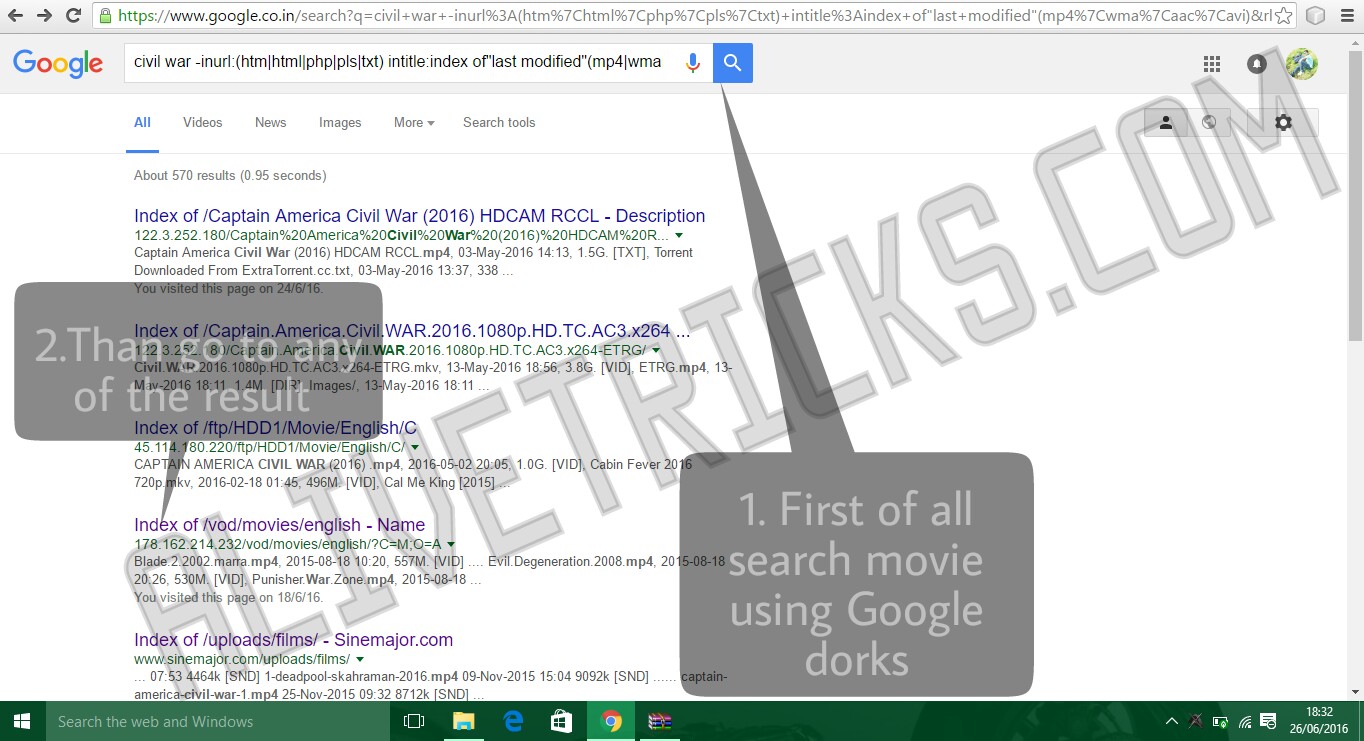
Movie Name -inurl:(htm|html|php|pls|txt) intitle:index of"last modified"(mp4|wma|aac|avi)
(Note- Replace movie name with the name of movie which you want to download)

In example, if you want to download the movie "Civil War" then you will edit it as-

civil war -inurl:(htm|html|php|pls|txt) intitle:index of"last modified"(mp4|wma|aac|avi)


Trick to find movies directly by Google dorks

1. First of all, go to google.com and search above mention Google dork change the movie name according to your interest of movie and search it.

Like i want to download civil war movie i will search "civil war -inurl:(htm|html|php|pls|txt) intitle:index of"last modified"(mp4|wma|aac|avi)"


How_to_find_direct_download_link_of_any_movie

2. After getting search results go to one of the results and find the movie name in the list and click on it.
How_to_find_direct_download_link_of_any_movie
3. Voila downloading is started "Without any embarrassing ads or tasks."

Enjoy the movie

How_to_find_direct_download_link_of_any_movie


This tutorial to find the download link of any movie instantly if you  like it, you can share it with your friends, using
 below-mentioned sharing buttons, which are more than 200 social links to share it, because we know that sharing is caring.

Trick to find who viewed you Facebook profile most

How to Check who viewed your Facebook profile most-
Yes this is true now you can saw who viewed most (maybe he or she is your crush ;) so you are in right place to know this trick )

Steps To Follow- (For PC users)
1. First of all, Go to your Facebook profile page
2. Now right anywhere on the page then you will get a small menu, now just click on view source code.

3. You will find a long code list now just press ctrl+f button and find " InitialChatFriends " same as shown in screen shot

4. now you will find some different types of numbers look like( ["100010971454569-2", ) you will find an extensive list of this kinds of numbers.

5. These numbers are the profile ids of the persons who visited your profile most. Now simply copy that ID's one by one and paste it after this URL http://facebook.com/(paste here)
i.e.   http://facebook.com/100010971454569  and hit enter 
now you can view profile behind this id. 
You Might also like: Trick to log-in facebook with temporary password

How to test Antivirus working using Notepad


Test antivirus using notepad- Every Tech savvy or regular computer user wants their computer to be safer from malicious software & viruses, and they usually use some antivirus software to save themselves from unknown activities, but they don't know how safe they are, even after using a good antivirus software.

So here is the solution of this problem to know our Antivirus is working properly or not by using this simple notepad trick.
" Obviously, we will not make a virus in fact; we will create a fake virus to test antivirus system. "
 

How to Test antivirus using Notepad

1. Open Notepad on the computer.
2. Copy and paste below code in notepad.
X5O!P%@AP[4PZX54(P^)7CC)7}$EICAR-STANDARD-ANTIVIRUS-TEST-FILE!$H+H*
3. And save as test-antiviurs.bat (extension is .bat)


If you are not able to get this method here is a fully detailed trick.

Fully Detailed post to check antivirus is working or not by using Notepad


1. First of all, open a notepad window in computer and paste the below code in notepad as shown in the screenshot.


X5O!P%@AP[4PZX54(P^)7CC)7}$EICAR-STANDARD-ANTIVIRUS-TEST-FILE!$H+H*


How to test antivirus using notepad


2. Then go to tab
file>>save as...
In file name type any name with .bat extension ( In example  type check.bat)
and in save type select all files and save this file to any path or folder(In my example I have chosen the desktop to save this file).
How to test antivirus using notepad

3. Now just wait for 2-3 second
If your Antivirus is working properly, it will detect the file as a virus, and it will delete it.
How to test antivirus using notepad
If your Antivirus does not detect the file as a virus, then it's a right time to change your Antivirus. 

Contact Form

Name

Email *

Message *

Powered by Blogger.